

What is a Quiz template?
A Quiz template is a ready-made format that teachers use to build multiple-choice activities in minutes. On Wordwall, teachers enter their questions and answers, then play the activity straight away. The same content can switch into a Gameshow quiz, Flash cards, or printable worksheet in one click. No app needed for students. Works across subjects, year groups, and any device.
Examples from other teachers


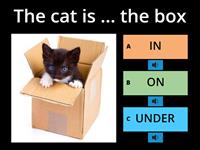
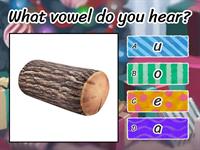


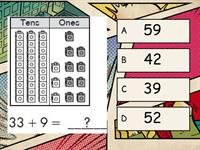

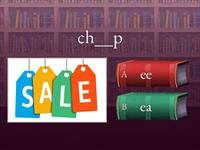




Use cases by subject
-
See Math Quizzes
Math
Times tables, mental arithmetic, fraction recognition, and shape properties.
-
See ELA Quizzes
English
Vocabulary definitions, spelling, reading comprehension questions, and grammar rules.
-
See Science Quizzes
Science
Periodic table elements, body parts, ecosystems, and forces and motion.
-
See History Quizzes
History
Dates, key figures, causes and consequences, and historical vocabulary.
-
See Geography Quizzes
Geography
Countries and capitals, physical features, map skills, and climate zones.
-
See Religion Quizzes
Religious Studies
Key beliefs, sacred texts, religious figures, practices, and traditions.
-
See Language Quizzes
Languages
Vocabulary, verb conjugations, translation, and listening comprehension.
How it works
-
1
Pick the Quiz template from our template library.
-
2
Enter your questions and answers manually. Or use Generate With AI (Standard and Pro) to create a full Quiz from a prompt or uploaded document.
-
3
Preview the activity and switch to other game formats from the play screen with one click.
-
4
Share with your class via direct link, QR code, Google Classroom, or embed. Or print as a worksheet.
-
5
Set it as an assignment to track individual student results.
When should teachers use this?
-
End-of-lesson check
Run a quick Quiz at the end of class to see who understood the material and who needs more time. It takes two minutes to set up and gives immediate feedback without marking.
-
Exam review
Students revisit the same content across multiple sessions. Because you can switch formats with one click, a vocabulary Quiz can become an Anagram or a Match up the next lesson. Same content, different challenge.
-
Vocabulary and terminology practice
Quiz activities work for any subject where students need to recall and match terms to definitions: science vocabulary, historical dates, language learning, times tables.
-
Prior knowledge checks
Use a Quiz at the start of a new topic to see what students already know. The results shape where you spend class time.
-
Homework and independent practice
Share a link students can access from any device at home. No app, no login required.
Benefits table
| Feature | Wordwall | Generic alternative |
|---|---|---|
| Community resources | Search and adapt over 25 million teacher-created activities by subject, age group, or template (Standard and Pro). | Build everything from scratch. |
| Switch formats instantly | One click switches the same content to a different game format. Free accounts include 12 templates; Pro gives you 34, including Gameshow quiz, Wordsearch, and Hangman. | Rebuild from scratch for each format. |
| AI content generation | Describe what you want or upload a document and we'll build the Quiz for you (Standard and Pro). | Manual entry only. |
| Print to worksheet | One click turns any Quiz into a printable worksheet (Standard and Pro). | Usually a separate tool or manual formatting. |
| Time to create | Under 5 minutes. | 15 to 30 minutes. |
| Student device | Any browser. No app or student account needed. | Often requires app install or student login. |
| Share options | Direct link, QR code, Google Classroom, embed, or print. | Usually one or two options. |
| Customization | Timer, shuffle order, lives, retries, leaderboard, letters on answers (Standard and Pro). | Usually fixed settings. |
| Results | Leaderboard with rank, score, and time, plus per-student breakdown. | Usually manual marking. |

The one-click format switch is what makes it different. Create your questions and answers once. We'll turn that content into a different game format without re-entering anything. 12 formats on a free account, 34 with Pro. Students get the same knowledge in a different format each lesson. Recall improves, lessons stay fresh.
Frequently asked questions (FAQs)
Is the Quiz template free to use?
Yes. It's part of our free Basic plan, which includes 12 templates and lets you create up to 3 activities. A Standard subscription ($ 7.20 / bulan) removes that limit and adds AI generation, game options like timers and leaderboards, print to worksheet, and access to over 25 million teacher-created activities to search and adapt. A Pro subscription ($ 10.80 / bulan) adds 22 further templates, including Gameshow quiz, Wordsearch, Hangman, and Image quiz. You can start for free and upgrade when you need more.
How do I share a Quiz with my students?
Once your Quiz is ready, you can share it via direct link, QR code, Google Classroom, or embed. Share the link on your class platform, display the QR code on your screen, push it to Google Classroom directly, or embed it in your school's LMS. Students don't need an account to play.
Can students play on a phone or tablet?
Yes. It runs in any browser, so there's no app download or student login required. Students can join from a phone, tablet, laptop, or desktop.
Can I edit a Quiz after I've published it?
Yes. You can edit your questions, answers, and settings at any time. Changes update straight away and the share link stays the same.
What's the difference between the Quiz template and Find the match?
Both test recall, but in different ways. Quiz presents a question and asks students to select the correct answer from multiple options. Find the match asks students to tap items to pair them. It works well for definitions, translations, and image-to-label activities. You can switch between the two with one click without re-entering your content.
Can I add images to my Quiz questions?
Yes. You can add images to both questions and answer choices. This works well for science diagrams, geography maps, art history, and any subject where visual recognition matters.
How do I see which students got which answers right?
The results dashboard shows responses per student and per question. You can see which questions the class struggled with and which students need follow-up. Results are stored in your account after each session.
Can I print my Quiz as a worksheet?
Yes, on Standard and Pro plans. Click Print from the activity screen and we'll generate a formatted paper version of your Quiz. Multiple choice layout, ready to hand out.
Can I set a timer or add a leaderboard to my Quiz?
Yes, on Standard and Pro plans. The Options panel lets you set a count-up or count-down timer, shuffle question and answer order, set a number of lives, allow retries after wrong answers, and toggle a leaderboard showing rank, score, and time.
Can I use Wordwall on a video call or for 1-to-1 tutoring?
Yes. Share your screen and students follow along, or send them the direct link to play on their own device at the same time. The embed option also works inside virtual classroom tools.


